Add your branding
White label your dashboard so your client won’t know it’s us.
Last updated About 1 year ago
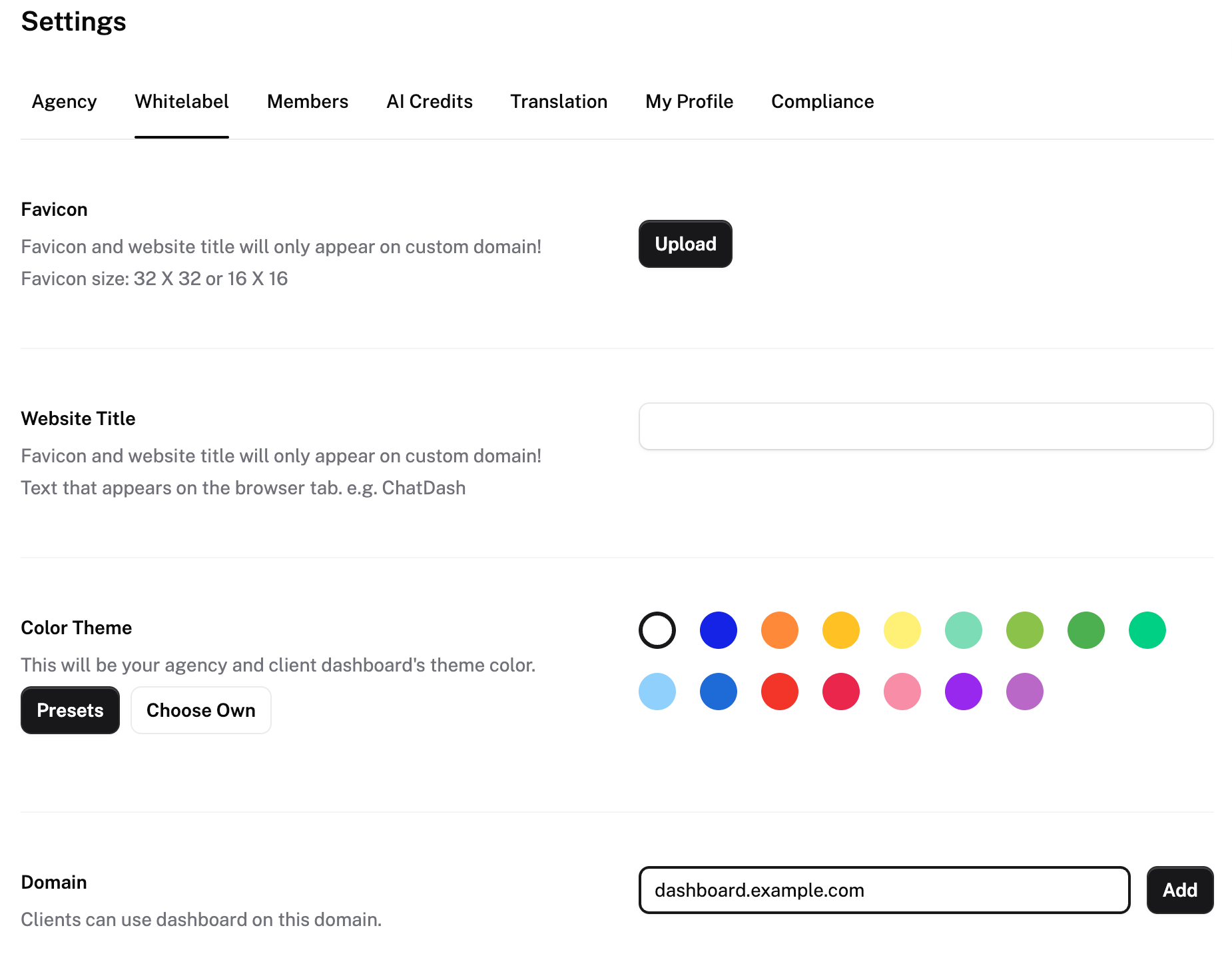
Adding a custom domain
Go to the Settings at the left-hand side of your agency dashboard.
Click on the White Label tab.
Find the Domain section at the bottom.
Enter the full domain name you want to add and click Add (Example:
dashboard.yourdomain.com).Add the DNS records provided by ChatDash to your domain registrar. (Example: GoDaddy, Namecheap, etc.)
CNAME Record: This record is used to point your domain to ChatDash servers.
TXT Record: This record is used to verify the domain ownership.
A Record: This record is used to point the domain to ChatDash servers.
Click Launch to complete the process.
Depending on your domain, you may need to add all or some of the above records. The DNS records may take up to 24 hours to propagate.
Customizing dashboard
Go to the Settings at the left-hand side of your agency dashboard.
Click on the White Label tab.
You will see the following customization options:
Favicon: Upload a favicon for the client dashboard.
Loading Icon: Select a loader to show while the dashboard is loading.
Color Scheme: Set the color color for the client dashboard. (Presets / Custom)
Website Title: Change the website title that appears on the client dashboard.
For logo and name customization, go to the Agency tab in the settings page.
Dashboard Logo: This will be displayed on agency and client dashboard as a circular avatar.
Login Page Logo: This will be displayed on the login page of the custom domain.
White labeling emails
Go to the Settings at the left-hand side of your agency dashboard.
Click on the Email tab.
Enter the full domain name you want to send emails from and click Add (Example:
mail.yourdomain.com).Add the DNS records provided by ChatDash to your domain registrar. (Example: GoDaddy, Namecheap, etc.)
CNAME Record: This record is used to point your domain to ChatDash servers.
TXT Record: This record is used to verify the domain ownership.
A Record: This record is used to point the domain to ChatDash servers.
Once your domain is verified, set the Sender Address and Name.
Optionally, upload a logo and customize the content of email templates.
Dark mode
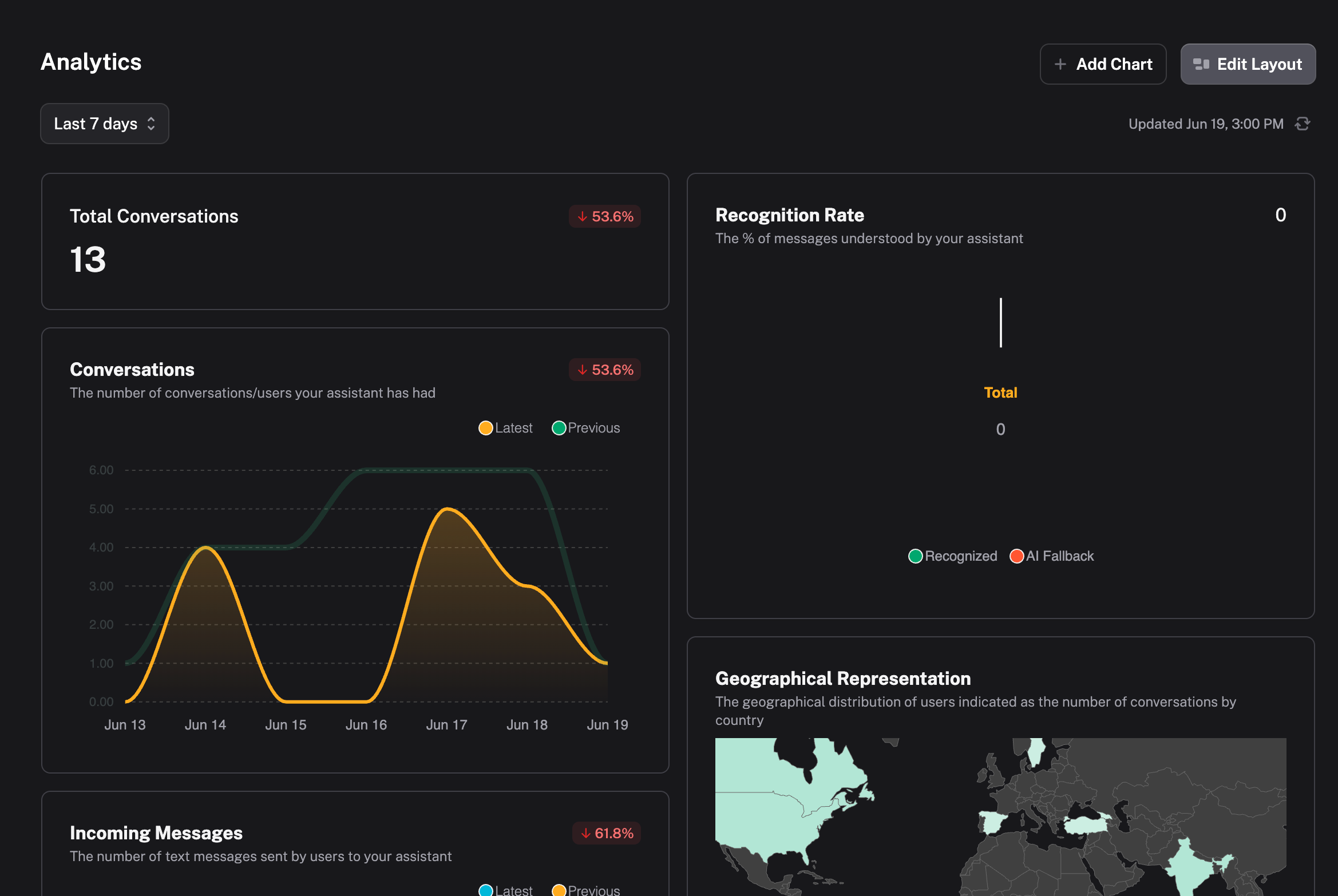
Both the agency dashboard and client dashboard support dark mode, allowing users to switch between light and dark themes for a more comfortable viewing experience.
On the agency dashboard, you can toggle dark mode using the sun/moon icon located in the sidebar.
On the client dashboard, clients will see their own sun/moon icon in the sidebar to control dark mode independently.
Dark mode preferences are stored separately, so changes made in the agency dashboard do not affect the client dashboard, and vice versa.
Custom CSS for client dashboard
You can apply custom CSS to each client’s dashboard individually, allowing you to tailor the look and feel of the dashboard to match each client’s brand.
To add custom CSS for a client:
Go to the Clients page in your agency dashboard.
Click the Client Detail icon (three dots) on the right side of the client row.
Select Custom CSS from the dropdown menu.
Enter your custom CSS in the input field and click Save.
To find the class names you want to override, use your browser’s Inspect tool (right-click an element → Inspect).
Only styles with the!important tagwill be applied.
Example.client-sidebar {
background-color: #1e293b !important;
}