How to fix automation errors
We've gathered the most frequent causes of errors in automations and created a step-by-step guide to solve them.
Last updated 11 months ago
In more than 90% of the error cases, the automation starts working after the user himself does some basic checks and corrects the flaws found. That is, you will most likely be able to solve the problem you are dealing with!
What are the steps?
Check if your automation is API or Webhook type
If the automation is API type, remember that it is not instantaneous in “real-time”. This means that you have to wait sometime (5 to 10 minutes on average, depending on service to service) for the ChatDash system to make the request.
If the automation is of type Webhook, make sure you put the generated Webhook URL for the access key in the specific field of the origin service. It's simple: just copy the link and paste it into the respective field. Know more!
Check app security permissions
Some services have complex security protection, which from time to time can make the process of running automation difficult.
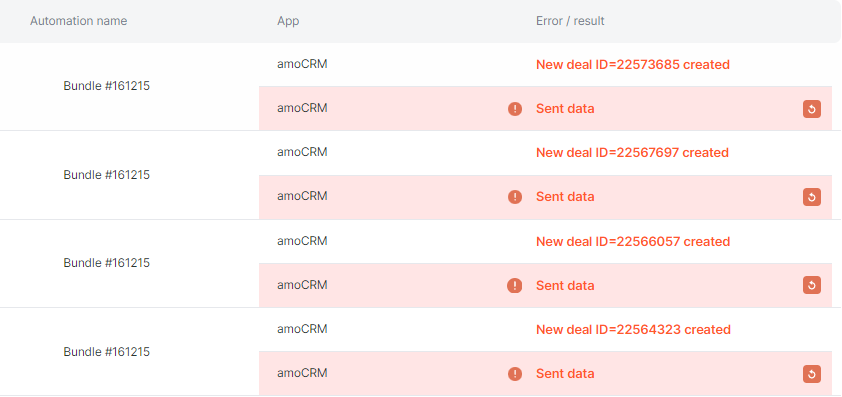
Analyze automation history
Check the automation history for any errors. Usually, the cause of the error is in its name, so it is possible to understand and correct it.
If you still have questions, contact us via chat. We are available to help you!