Agency Workflows Tab
Your central command center for creating, managing, and deploying all automated processes within your agency and for your clients.
Last updated 11 months ago
Overview
The Workflows tab is your central command center for creating, managing, and deploying all automations within your agency and for your clients. It provides a powerful no-code interface to connect apps, build solutions, and monitor all automation activity.
This tab is organized into five main sections. Here’s what each one does:
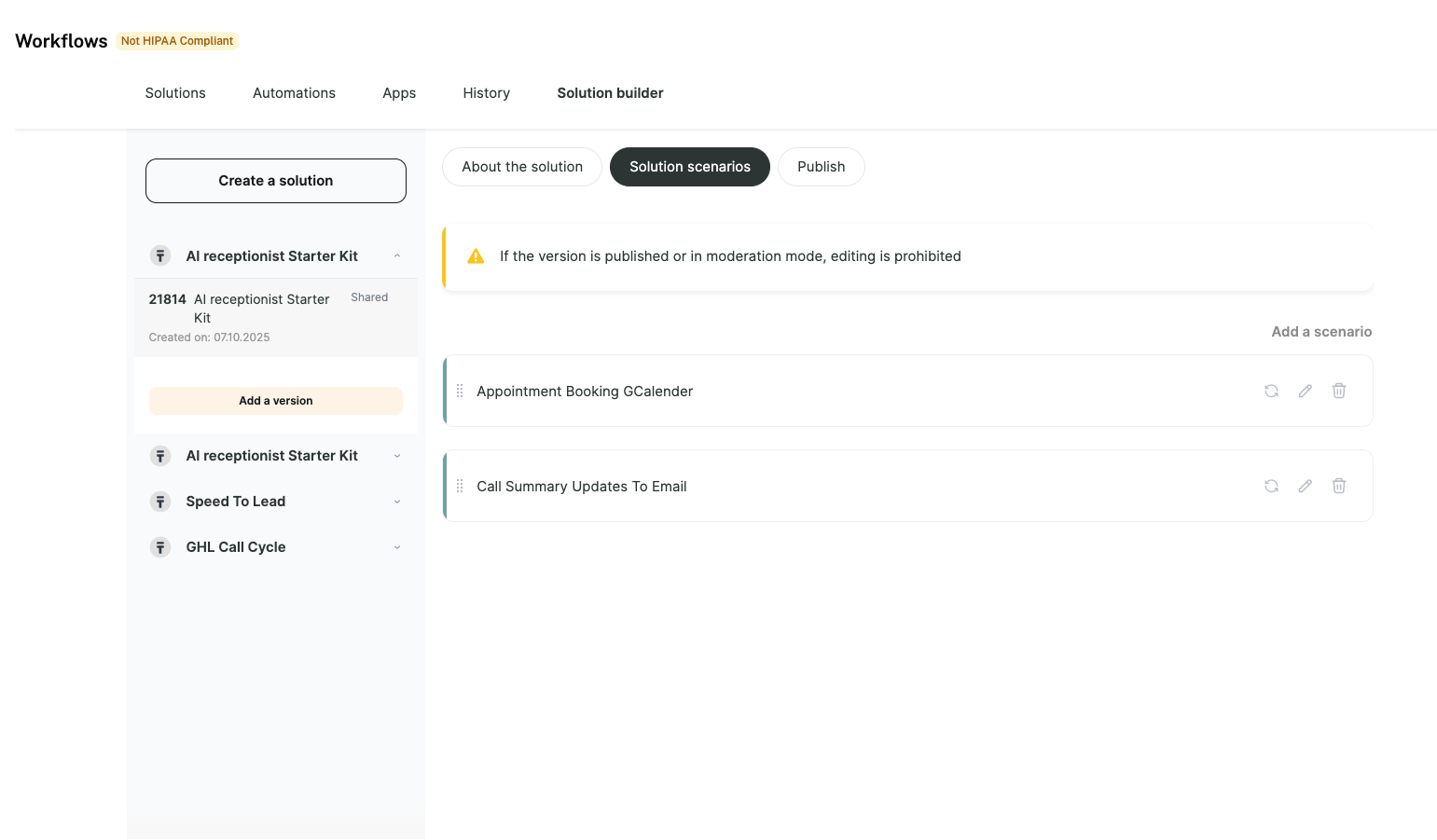
1. Solutions
This section is your marketplace for pre-built automation bundles. Think of it as an "app store" for powerful, ready-to-go workflows.
Marketplace: Browse a library of solutions provided by ChatDash, each designed to solve a specific business use case (e.g., "Sample Appointment Booking - includes check_availabilty & book_appointment automations").
My Installations: When you find a solution you want to use, you can "Install" it. It will then appear here, ready for you to configure and use within your agency.
2. Automations
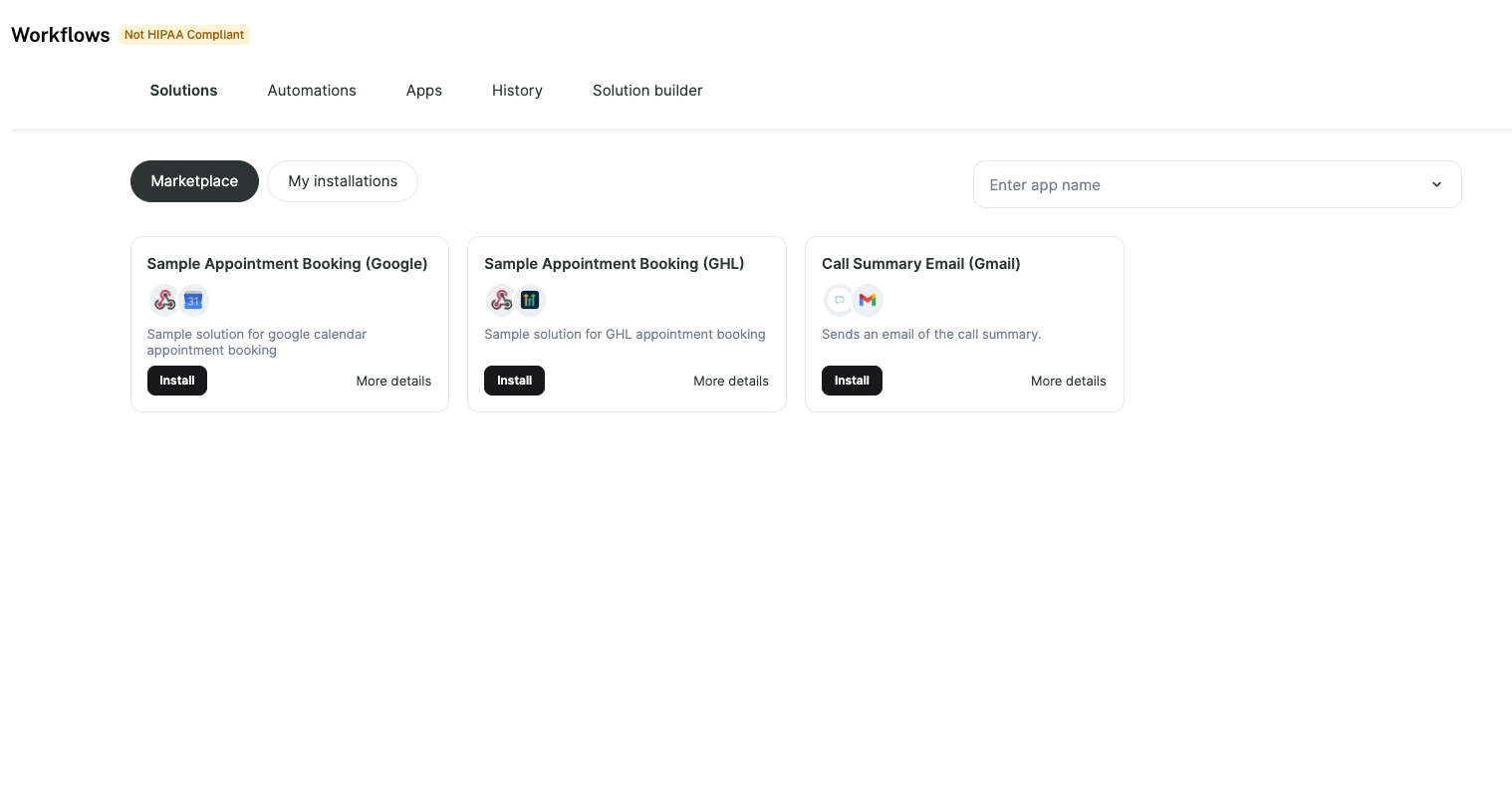
This is your personal workshop for building, testing, and managing individual automations from scratch.
You can create agency-level automations (to automate your own internal tasks) or test automations on behalf of your clients.
Automations can be organized into groups for better management.
Important Note: This "Automations" tab is for individual workflows you build yourself. The pre-built, packaged "Solutions" you install from the marketplace will live in the Solutions > My Installations tab.

3. Apps
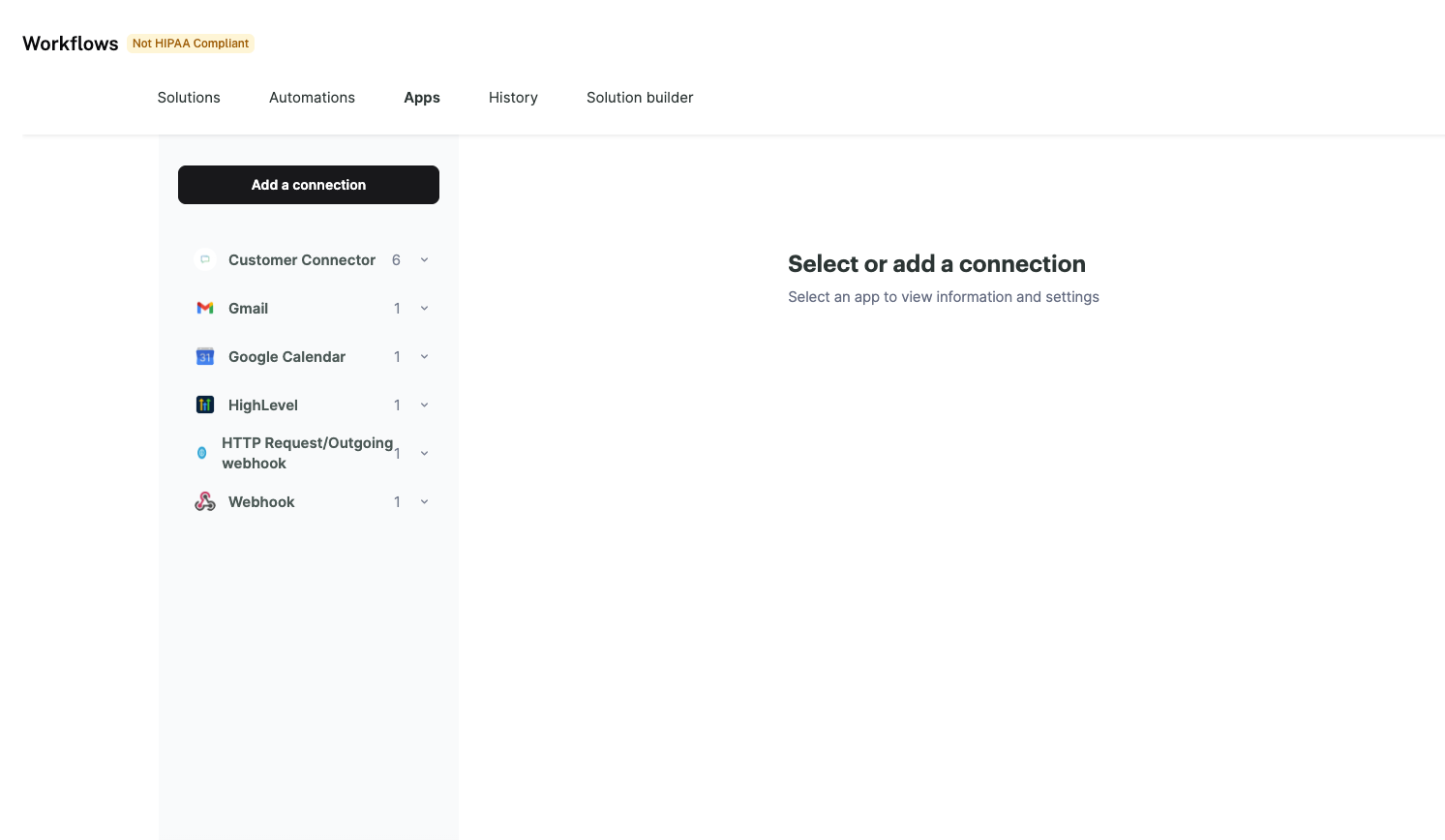
An automation is only as powerful as the tools it connects. This section is where you manage all your third-party application connections.
From here, you can add, update, and remove (delete) your connections to services like Google Calendar, Gmail, HighLevel, and any other apps you use in your automations.
These connections are authenticated and stored securely to be used across your different workflows.
4. History
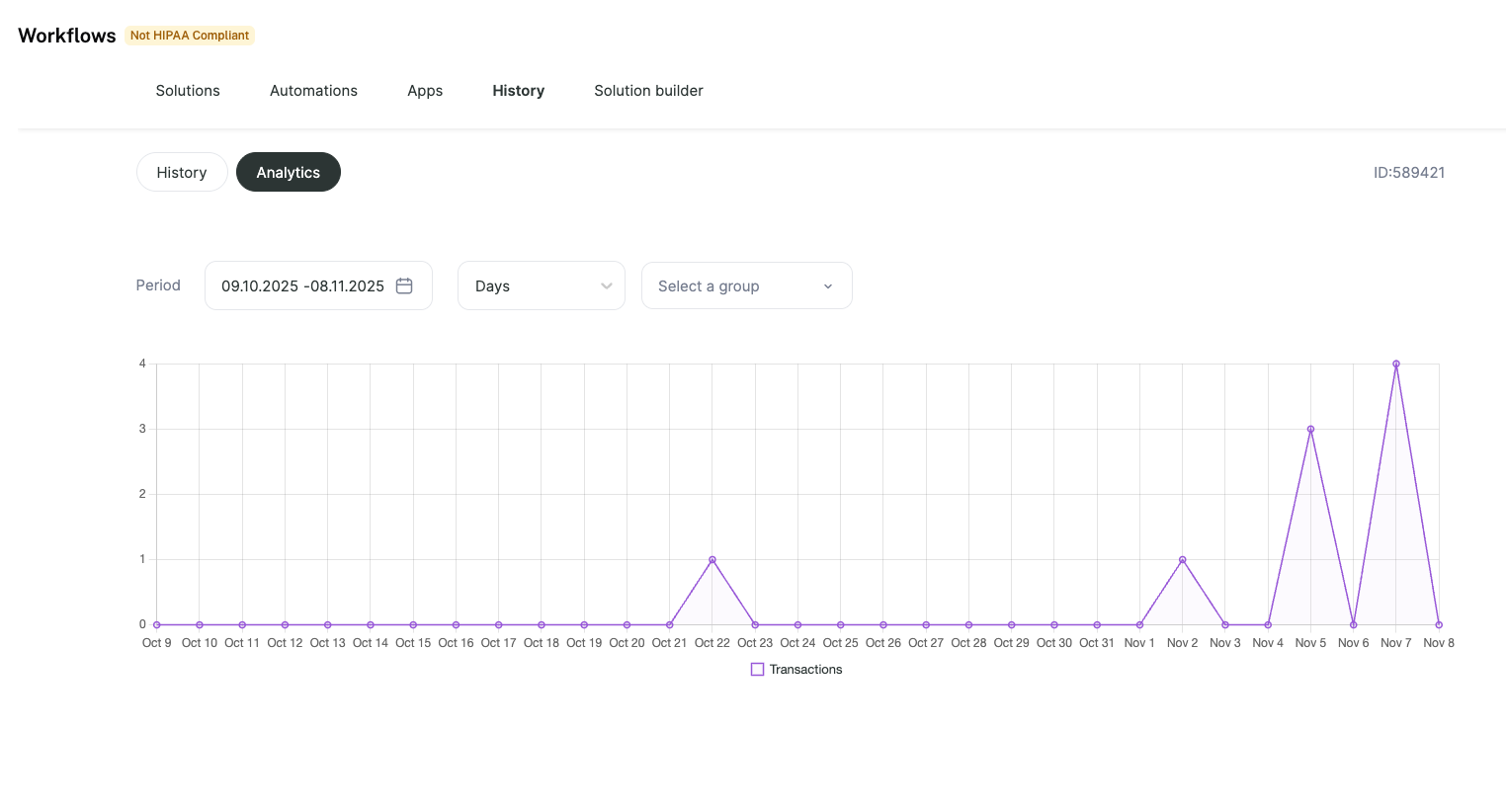
This tab provides the logs and analytics for all your automations. It's the best place to monitor activity and troubleshoot any issues.
Check Logs: See a detailed, real-time feed of all your automation runs.
View Analytics: Understand how your automations are performing, see success and failure rates, and track overall usage.
5. Solution Builder
This is an advanced feature that allows you to package your own automations into a single "solution" that you can then offer to your clients.
Just as ChatDash provides solutions for you in the Marketplace, you can use this builder to create and bundle your own workflows.
After creating a solution, you can go to a specific client's account and assign this solution to them. It will then appear in their "Solutions" tab for them to install and use.