Client Workflows Tab
Your command center for creating, managing, and deploying all automations for single client.
Last updated 11 months ago
Overview
When you navigate to a specific client's dashboard and click on the Workflows tab, you are viewing a dashboard to manage automations exclusively for that client.
This view is different from the main "Workflows" tab in your agency dashboard. Your main agency tab is for creating solutions and managing agency-wide automations. This client-specific tab is for assigning, building, and monitoring workflows for this single client.
This tab contains four key sections:
1. Solutions
This is where you manage the pre-built, packaged solutions for this client. This section is divided into two parts:
Marketplace: This tab displays the solutions that are available for this client to install. This list is not your entire agency library. It only shows the solutions you have already specifically assigned to this client from your main agency-level "Solution Builder."
My Installations: This tab shows all the solutions that are currently installed and active on this client's account. You can see what's running, manage configurations, or install solutions on their behalf.

2. Automations
This is the workshop for building and managing individual, custom automations only for this client.
Any automation you create here will run for this client and use their specific app connections. This is the ideal place for building one-off workflows that are not part of a larger, reusable "Solution."
For example, you could build client-specific automations to:
Update their CRM when a voice agent call ends (
call_ended).Send an end-of-call summary email to the client's inbox.
Send an SMS notification when a new "hot lead" comes in.

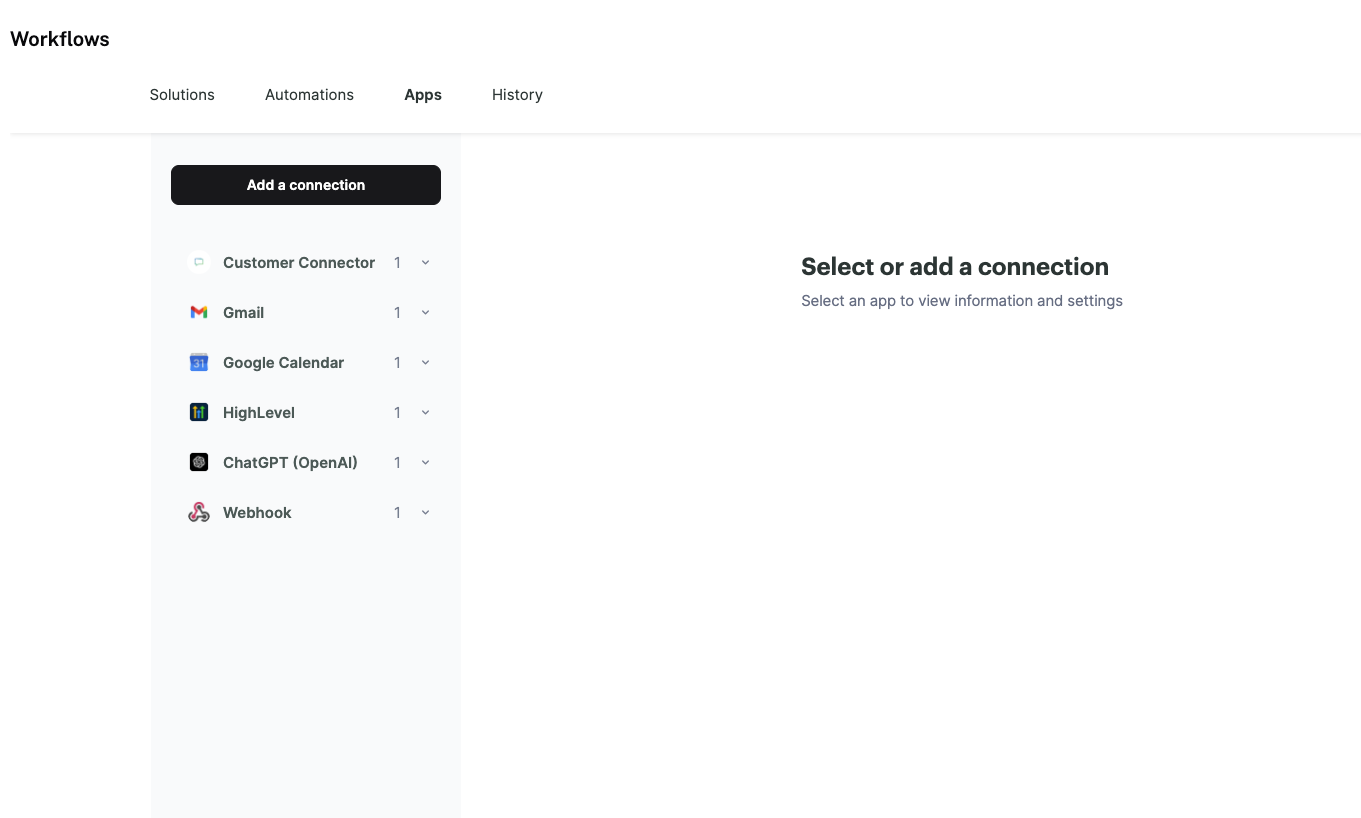
3. Apps
This is for managing the third-party application connections for this client.
When an automation needs to access the client's Google Calendar, CRM, or email, you will connect and authenticate that app here.
Crucially, these connections are specific to this client and are separate from your main agency-level app connections.
4. History
This tab provides the complete logs and analytics for all automations running on this client's account.
Use this section to monitor automation performance, check for errors, and troubleshoot any issues specifically for this client.
The logs here are filtered, so you will only see the activity for the client you are currently viewing.
