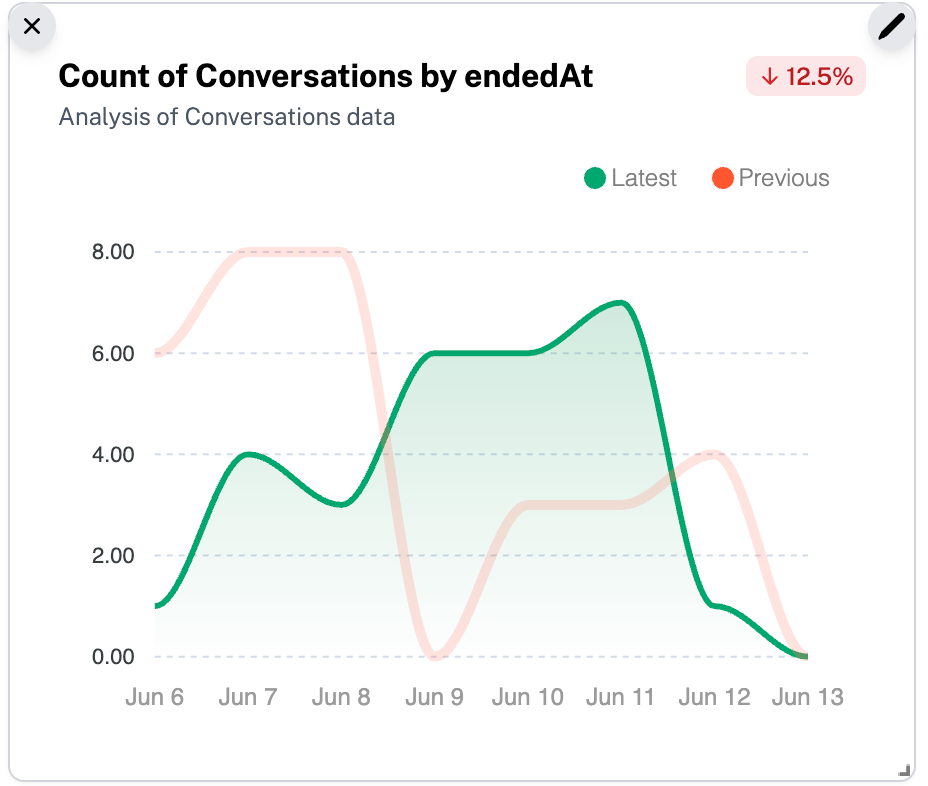
Custom KPI Metrics
Define and visualize any data using flexible chart types and filters. Available on Premium & Growth plans.
Last updated 12 months ago
1. Enable Analytics Access
Before you begin, make sure Analytics is enabled for the client:
In the Agency dashboard, go to Agents → Agent Settings → Client Access.
Toggle Analytics on and click Save.
2. Open the Client Preview
On the Clients page, click Preview (far right) for your agency view.
In the top-left of the Client dashboard, select the Agent you want to configure.
3. Add a New Chart
Navigate to Analytics in the Client dashboard sidebar.
Click + Add Chart (visible only in Preview).
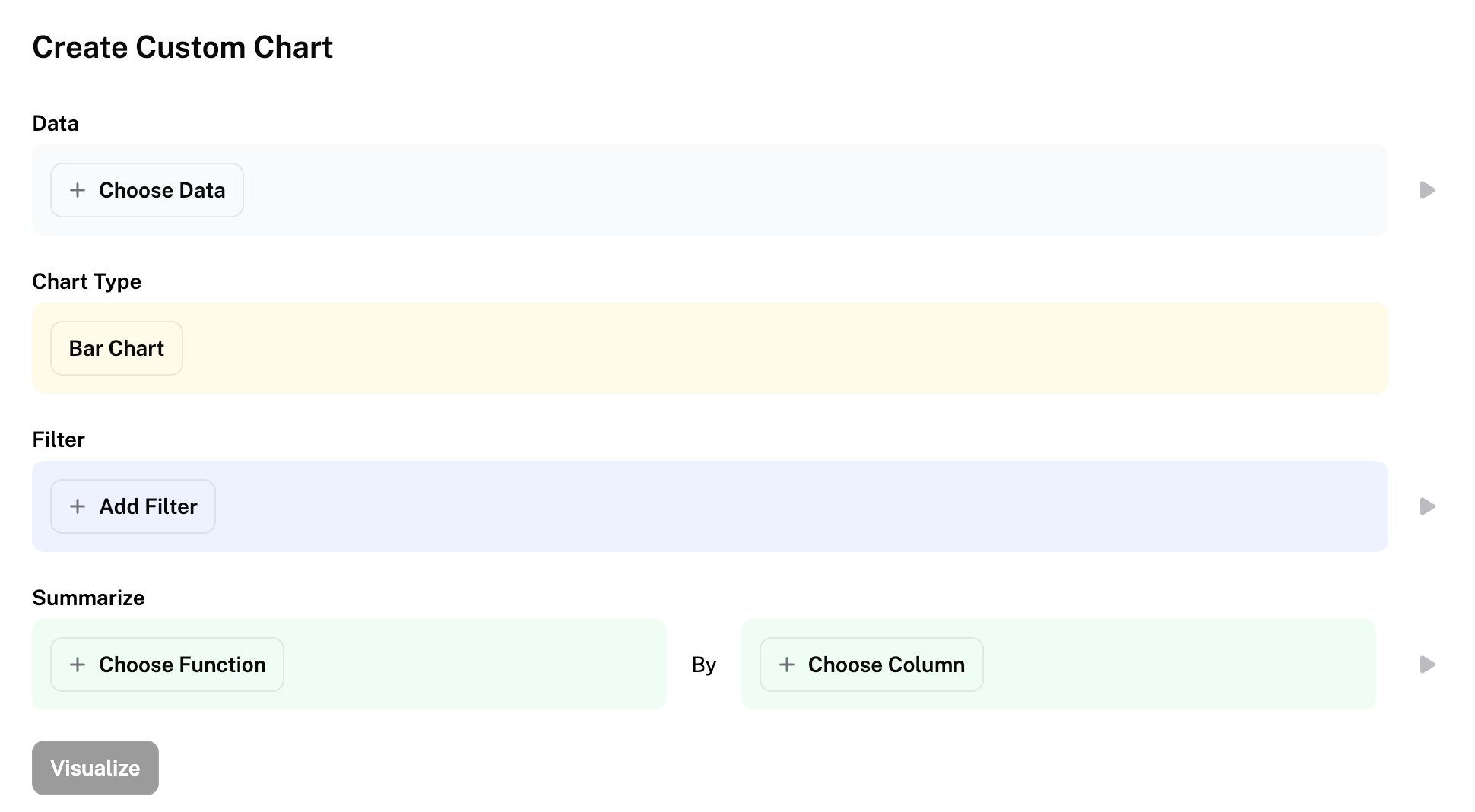
You’re taken to the Create Custom Chart page.
4. Configure Your Chart
Data Source: Choose Conversations or Leads.
Chart Type: Select one of Bar, Area, Pie, Funnel, or Number.
Filters: Define filters for the dataset.
Click the Play icon next to each filter to preview matching rows.
Function & Column:
For most charts: pick a Function (Count, Sum, Avg, Distinct Count, Std Dev, Min, Max) and a Column to group by.
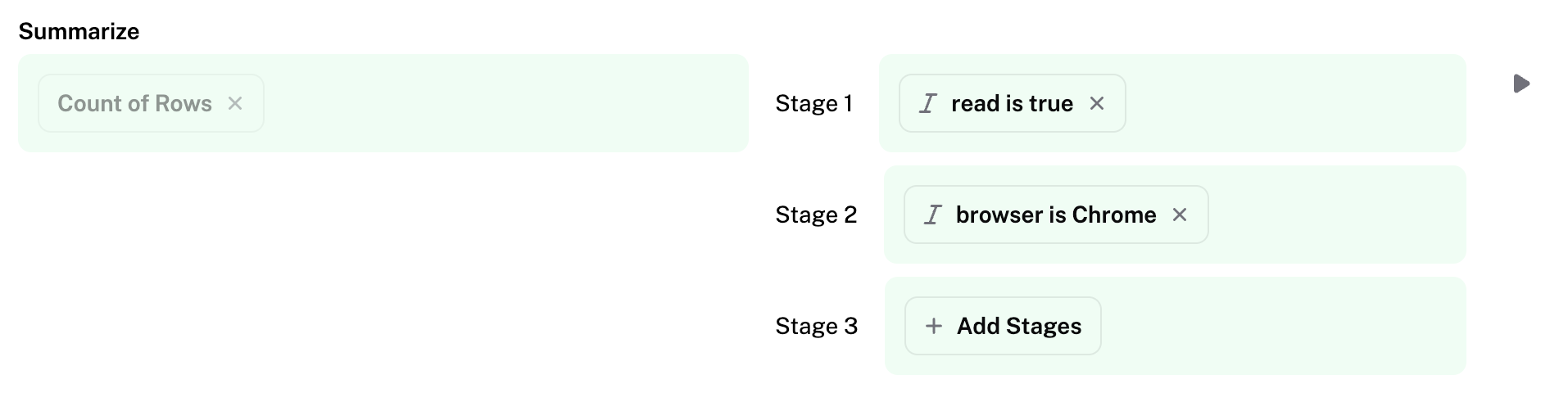
Funnels use stages instead of functions:
Stage 1: Count rows matching Filter 1
Stage 2: Count rows matching Filter 2 (applied to Stage 1 results)
Add more stages as needed.
Function Details
Count of Rows
Counts how many data are in each group.
No field required - simply counts rows
Example: "How many conversations happened for each topics?"
Use case: Number of data grouped by the column field selected
Sum of
Adds up all the numeric values in a specific field.
Requires: A numeric field (like duration, cost)
Example: "What's the total conversation duration?" using the
durationfieldUse case: Total call time, total cost
Average of
Calculates the average (mean) of numeric values in a field.
Requires: A numeric field
Example: "What's the average conversation cost by phone number?" using the
costfieldUse case: Average call length, average cost
Minimum of
Finds the smallest numeric value in a field for each group.
Requires: A numeric field
Example: "What's the shortest conversation duration each day?" using the
durationfieldUse case: Minimum call time, lowest cost
Maximum of
Finds the largest numeric value in a field for each group.
Requires: A numeric field
Example: "What's the longest conversation duration each day?" using the
durationfieldUse case: Maximum call time, highest cost
Number of distinct values of
Counts how many unique (different) values appear in a field.
Requires: Any field
Example: "How many different topics were discussed each day?" using the
topicfieldUse case: Number of unique phone numbers contacted, distinct conversation topics
Standard deviation of
Measures how spread out the values are from the average - useful for consistency analysis.
Requires: A numeric field
Example: "How consistent are conversation durations?" using the
durationfieldUse case: Quality control, performance consistency measurement
5. Visualize & Save
Click Visualize to preview your chart.
On the Visualize page, you can:
Change Chart Type
Edit Name, Description, and Colors.
Click Save—you’ll return to the Analytics page, where your new chart appears.
Note: Calculating data may take some time so initially the chart can show “No data to display”.
6. Edit or Delete Charts
On Analytics, click Edit Layout (agency Preview only).
Edit or Delete icons will appear for custom charts.
Make your changes or remove unwanted charts.